
[Update] What’s New in Version 2.3.24!
Thank you for using Mind Render!
With the new Version 2.3.24 update, we’ve added some exciting new features to make creating with Mind Render easier, smoother, and even more fun!
1. Meet “GIGA Tetori” — Our Supercharged AI Help!
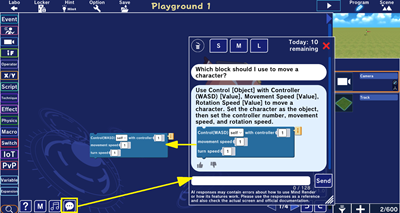
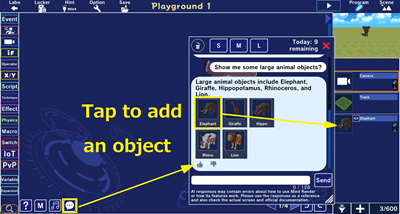
Mind Render’s AI Help has gotten a big upgrade!
Now you can use AI to search directly for programming blocks and objects. (AI Coding Expert (ACE))
Just ask something like: “Which block should I use to move a character?” or “Show me some large animal objects.” GIGA Tetori will suggest blocks and objects that match what you’re looking for.
And here’s the best part: you can drag and drop a suggested block straight into the programming editor, or simply tap a suggested object to add it to your project.
You can also ask questions like: “How can I do this with blocks?” GIGA Tetori will explain what to do and show you the blocks you’ll need along the way.
So whenever you get stuck, just ask Dr. Tetori!
To use GIGA Tetori AI Help, you’ll need to create an account and log in. Registration is quick and easy—all you need is an email address.
See the Difference: Old vs. New AI Help
Wondering what’s actually changed? Let’s compare the old and new AI Help with a real question.
Question: How can I control a character on a smartphone or tablet?
▶Before: Previous AI Help
On a smartphone or tablet, you can control a character by placing a joypad on the screen.
1. Place a joypad on the screen.
2. Add the block “While joypad [object] leaned to [direction]”, and select the up/down direction.
3. Connect the block “[object] move to dir [axis] speed [value]”underneath it and set the movement direction to the Z axis.
4. To turn left and right, add another joypad tilt block and connect the block “[object] spin axis [axis] spd [value]”, setting the rotation axis to Y.
💡 The AI didn’t always provide the shortest solution, and you had to look for the blocks yourself.
▶Now: GIGA Tetori
GIGA Tetori not only explains how to control your character—it also shows you the blocks and objects you need right in the AI Help screen.
✨ The blocks and objects you need appear together with the answer.
No more hunting through menus trying to find the right block. Just choose what GIGA Tetori suggests and start creating!
2. Find the Block You Need—Fast!
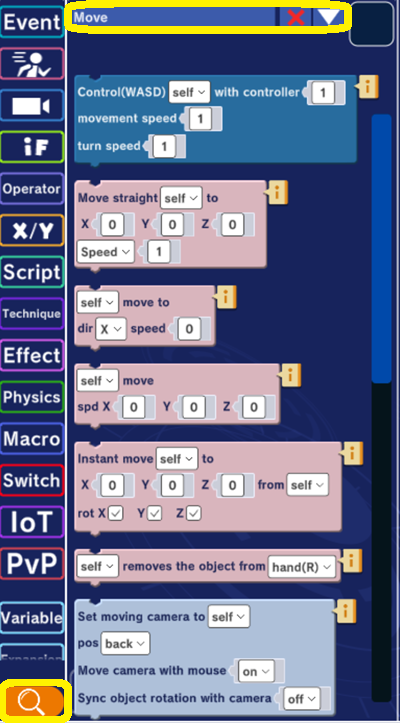
We’ve also added Block Search to the block categories.
Just type in a keyword to quickly narrow down the available blocks.
Your search history is saved too, so there’s less time spent thinking, “Where was that block again?”
Spend less time searching—and more time creating!
3. Ghosts Have Arrived!
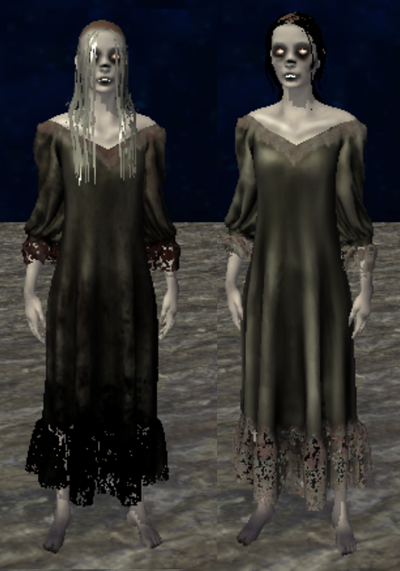
Two new ghost objects have joined Mind Render!
Build a haunted house, create spooky surprises, or expand your range of expression.
And if you view your creation in VR, you might even give your family and friends a little scare!
With even more ways to bring your ideas to life, what will you create next?
Try the new Mind Render and turn your next idea into something amazing!