
New features in ver 2.3.13
1. New objects
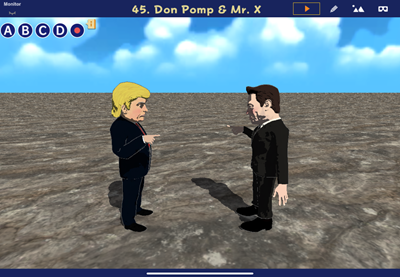
We have added two new unique characters.
Available in the Object screen: Model > Donp Pomp, Mr. X
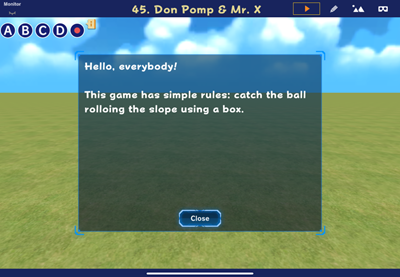
We have added a scrollable dialog box that can be closed with a “Close” button. This is useful for displaying explanatory text.
Available in the Object screen: Tool > Dialog 1
You can use it with the following blocks.
– Display [Text… ] in [self] frame [ ]
– Display [Text… ] title [Text… ] sup [Text… ] in [self] frame [ ]
– Display [Text… ] in [self] Color [ ] Outline [ ] Size [64]
2. New block

We have added a block that can show or hide the ABCD buttons.
Available in the Technique category > ABCD buttons [on]
3. Set Anchor Points
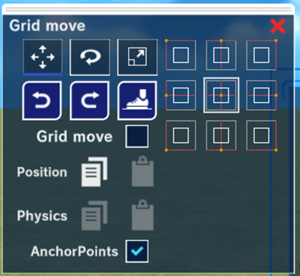
We have added anchor point settings to Tool objects. Previously fixed at the center, you can now choose from 9 locations, such as the top-left corner.
In the Scene Editing screen, select the object (such as a button) for which you want to set an anchor point. Next, in the displayed dialog, check the “Anchor Points” option. Select the anchor point (where on the screen you want the object positioned relative to – e.g., top-left corner, right edge center, etc.). Finally, specify coordinates in the area at the top-right of the screen where you set the coordinates, angles, and sizes. (These are the distance from the anchor point to the object’s origin. The origin is typically the object’s center.)
When the screen size changes, buttons may appear more centered than intended or overlap each other. Placing the anchor point at a corner or edge prevents this.
* If coordinates are specified that cause part of the button to spread out of the screen, the button will automatically adjust to ensure it is fully displayed.
4. Added Menu to Object List
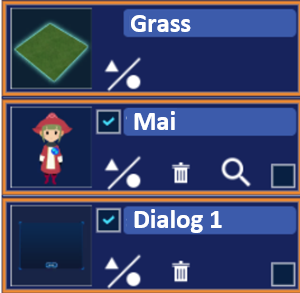
In the object list, buttons for “Change,” “Delete,” and “Detail” now appear for the selected object. (Non-functional items like “Delete” for the background button are not displayed.)