
New features in ver 2.3.18
1. New Blocks and Objects (Integration with AI Drill)
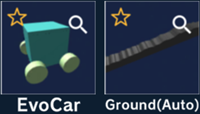
Two models trained with Mind Render / AI Drill are now available for use in Mind Render.
*“Mind Render / AI Drill” is an advanced AI (machine learning) experimental platform developed in collaboration with Iba Laboratory in The University of Tokyo and Mobile Internet Technology. This platform is mainly designed for educational and research use for university students and similar users. Experience with Unity, as well as basic knowledge of programming and machine learning, is helpful for using its features smoothly.
Evocar: Evocar is a vehicle whose shape has been evolved through machine learning using the “Car Evolution” in Mind Render / AI Drill so that the car successfully runs on a bumpy and uneven road.
- You can add it with the steps below:
Add Object > Select “AI” in categories > Evocar - A bumpy road object for the Evocar to run on has also been added.
Add Object > Select “AI” in categories > Ground (Auto) - You can view a sample program using these features below:
Create > New objects → “51. Evolve the car shape!”
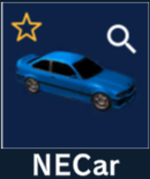
NECar: NECar is a vehicle trained using machine learning with “Self-Driving (Q-learning and Neuroevolution)” in Mind Render / AI Drill, enabling it to drive while avoiding walls and obstacles.
- You can add it with the steps below:
Add Object > Select “AI” in categories >NECar” - You can view a sample program using this feature below:
Create > New objects → “50.Self-driving!”Loading Trained Models from Mind Render / AI Drill
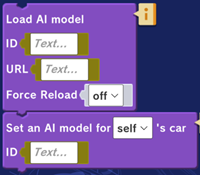
To load models trained with Mind Render / AI Drill, please use the following blocks:
Load AI model ID [ ] URL [ ] Force Reload [off | on]
Set an AI model for [Self]’s car ID []
[ID] Enter any string (e.g., “NE”). Duplicate IDs are not allowed within the same program. Each ID must uniquely correspond to the ID specified in the “Set an AI model for [self]’s car” block.
[URL] Copy and paste the path to a trained model saved on your PC, or the URL of a model stored on cloud storage (such as Google Drive).
[Force Load] When set to on, the trained model will be reloaded every time the program starts. The default setting is off.
2. Changes Related to Variables
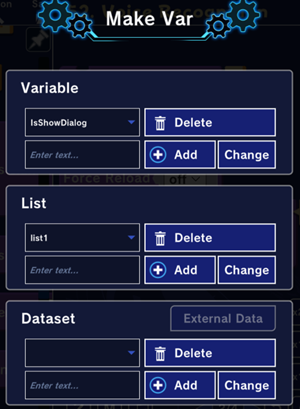
- You can now rename variables, lists, and datasets. To do so,
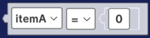
Go to the left side menu > Variable > Make Var, select the item you want to rename, enter a new name, and click “Change.” - A new variable comparison block has been added. Previously, comparisons required combining blocks in the Operator and variables category, but now they can be done with a single block below:
[itemA] [=] [0]
3. New Backgrounds
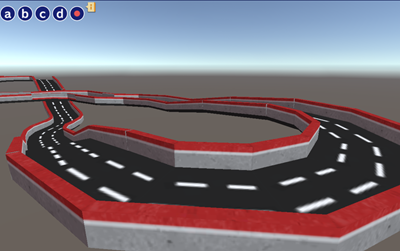
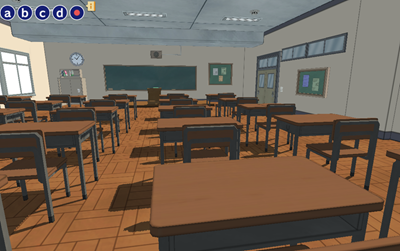
The following background objects have been added:
Track 2 to Track 5 and Classroom 1